5 Simple To-Do List Apps to Keep Your Day Organized
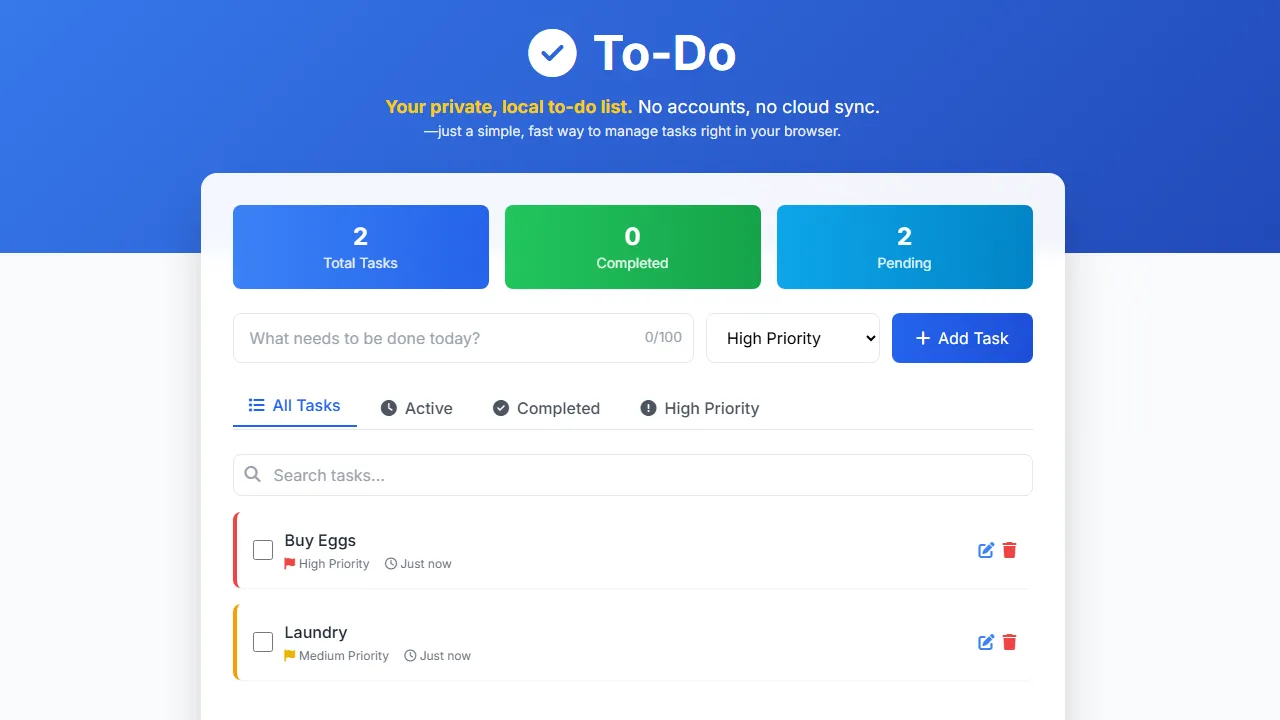
A useful to-do list makes the next step clear. These five apps offer different ways to organize everyday tasks, from a local browser checklist to connected planners.
You probably do not need a complicated productivity system to remember three errands, finish a small project, or plan tomorrow. You need somewhere to write things down, find them again, and check them off.
The right app depends on how you work. A browser-only list can suit a private daily checklist. A connected app makes more sense when tasks need to follow you between devices or sit alongside email and appointments.
We build Local To-Do List at FonneLabs, so we have placed it first. The other four options are alternatives for different workflows, rather than a ranking based on hands-on testing.
1. Local To-Do List
Best for: a personal checklist without account setup.
Local To-Do List keeps the starting point simple: open the app in your browser and begin adding tasks. There is no registration step, and tasks are stored in your browser's local storage rather than synced to an account.
That makes it a good fit for a short workday plan, a shopping checklist, or a place to collect small tasks while you work. You can keep your list close without setting up a workspace or deciding how to organize an entire project.
- No account required: start with the task you want to remember.
- Local storage: keep the list in the browser where you use it.
- A browser-based interface: work from a desktop or a smaller screen.
The trade-off is portability. Local browser storage does not provide automatic cross-device syncing, and clearing the app's browser data can remove your saved tasks. Choose it for a local checklist; choose a synced service when access from multiple devices matters more.
2. Microsoft To Do
Best for: daily planning alongside Outlook.
Microsoft To Do combines everyday lists with My Day, a view for choosing what deserves attention today. It supports due dates, reminders, shared lists, and smaller steps within a task.
Its Outlook tasks integration makes it a practical option if email already shapes your working day. Microsoft also offers free access and list syncing across supported devices.
Choose it when you want a daily planner connected to the Microsoft tools you already use. For a quick checklist without signing into a service, Local To-Do List offers a simpler starting point. See Microsoft's feature overview.
3. Google Tasks
Best for: keeping follow-ups close to Gmail and Google Calendar.
Google Tasks is a useful choice when much of your work starts with an email or a calendar entry. You can create a task from a Gmail message and return to the original email for context.
The appeal is convenience: capture a follow-up where you are already working, then keep track of it alongside your schedule. That can be easier than copying every request into a separate planning system.
Choose it if Google's workspace is already your home base. Its main advantage here is the connection to your existing workflow. See Google's Tasks overview.
4. Todoist
Best for: starting with a list and adding structure as needed.
Todoist offers quick task entry, recurring due dates, projects, priorities, and subtasks. Its natural-language entry can help you capture a task and its timing together, while projects give related work a place to live.
It is a sensible option when a single checklist starts feeling crowded. Separate personal errands from work projects, then use priorities to identify what needs attention first.
Choose it when you expect your task system to grow. Keep the initial setup small; you can add labels and more detailed views when they solve a real problem. See Todoist's official features.
5. TickTick
Best for: combining tasks with focus sessions and habits.
TickTick brings task lists together with tools such as recurring reminders, a Pomodoro timer, and habit tracking. That combination can suit someone who wants to plan a task, spend focused time on it, and build a routine around it.
Its broader feature set is also the trade-off. If you only need a few checkboxes, you may not need the extra planning tools.
Choose it when focus and habit features are part of your workflow. Check the current plan details before relying on a particular feature. See TickTick's official feature list.
Which app fits your day?
| App | A good starting point when you want… |
|---|---|
| Local To-Do List | A local browser checklist without registration |
| Microsoft To Do | Daily planning connected to Outlook tasks |
| Google Tasks | Follow-ups close to Gmail and Calendar |
| Todoist | Lists that can grow into organized projects |
| TickTick | Tasks alongside focus sessions and habit tracking |
Start with the smallest setup that handles your actual needs. Write down a few real tasks, use the app for a normal day, and notice whether it helps you get back to the work.
Your list should make the next action easier to see.
If you want a straightforward place to begin, try our Local To-Do List. Add today's tasks, finish one, and adjust your system when you have a reason to.